EXPLORE
Beginning Jan. 26, 2026, students will be required to use multi-factor authentication when logging into their Chromebook when not at school or connected to the school’s Wi-Fi. Multi-factor authentication also be required if logging in on a personal computer at home.
Why is this change being made? Privacy breaches are becoming more common. We all have the responsibility to ensure that our data and that of our students are safe from outside hacking attempts. Currently, the login information of our students only has one layer of security, their password. Multi-factor authentication adds an additional layer of security.
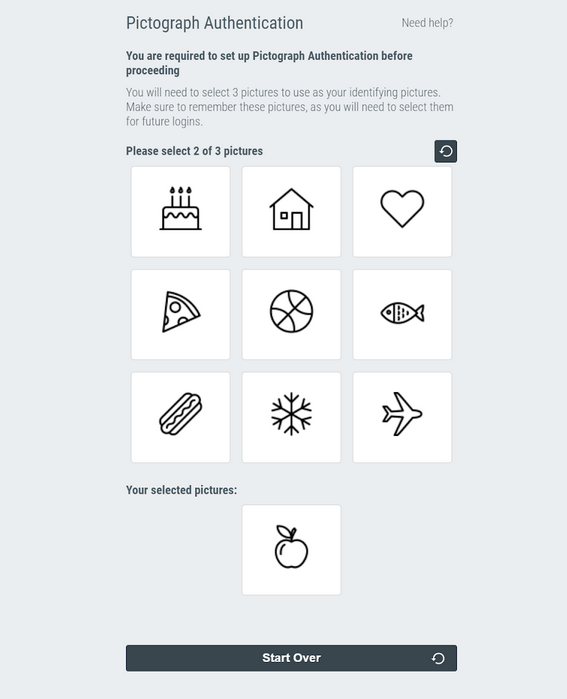
Multi-factor authentication includes the use of the login password and the selection of three unique pictographs through RapidIdentity. Details about how to set up the new pictographs can be found below. Reminders will be published in Canvas.
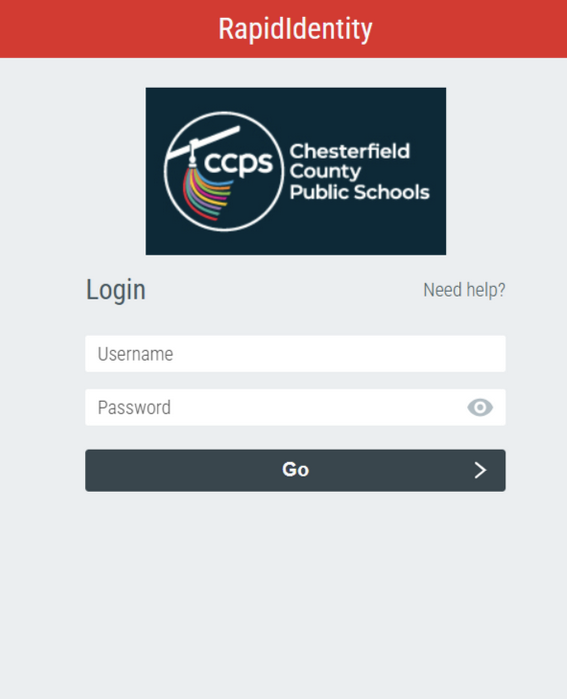
Log in with your username and password.
Choose your pictures.
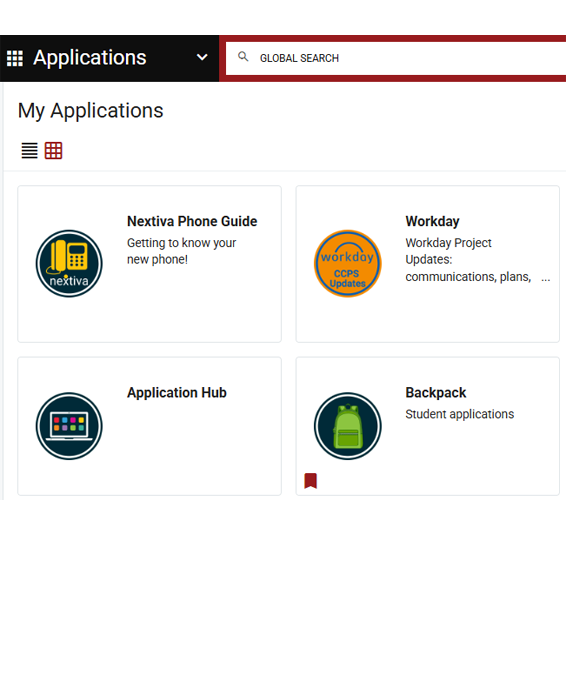
Log in with your username, password and pictures.
Note that your pictures will be in a different spot and order each time you log in. Look carefully before clicking.
Fixing Connection Issues
Can’t connect to my.ccpsnet.net?
Forgot your password?
The student’s username is their student ID number. This number can be found in ParentVue and on report cards. Contact your school or teacher for password resets.
The first time that a student logs into a particular Chromebook, they will not see their profile on the home screen. When they click Add A User, they will need to enter the full user account name Student ID@ccpsnet.net – Example: 4912345@ccpsnet.net
To change your password
Note: You must know the student’s password in order to change the password.
Clearing Profiles
If you wish to remove someone else’s account name from your Chromebook:
Parent Access to Canvas
Canvas allows parents to access information about their students’ courses using both the website and the mobile app. Please bear in mind, however, that the parent experience in the mobile app is limited compared to that of a desktop browser. We strongly recommend that parents and guardians create their accounts on a desktop browser.
Canvas Parent requires a Canvas account and is available for both Android and iOS devices.
Canvas Parent Mobile App – IOS
**Please note that grades listed on this screen in the mobile app are not official! Synergy remains the official source for CCPS student grade information.**
Need more information?
Click here to access general information about the mobile app. For assistance with downloading the app, click on one of the following:
Applications vary by grade level
The following applications can be found by clicking on the Backpack icon. Click on each icon for family resources.
Families may be eligible for reduced Internet connectivity in their homes through Comcast/Xfinity’s Internet Essentials program for $15.00 per month or the Verizon Forward program for $20.00 per month. To learn about qualifying criteria, please visit the internet Essentials webpage or the Verizon Forward webpage.
All students are provided a charger when issued their Chromebook. Chesterfield County Public Schools replaces damaged or defective chargers. Those replacements can be obtained from the technology help desk.
Lost or stolen chargers must be replaced by the student. Families may purchase replacement Lenovo-compatible chargers online or from most electronics retailers.
Charger specifications are as follows:
Accidental Damage
No charge
Damage not Covered by Accidental Damage Protection Plan
Additional Actions
Lost/Stolen Chromebook
$260.00 replacement cost
Lost Charger