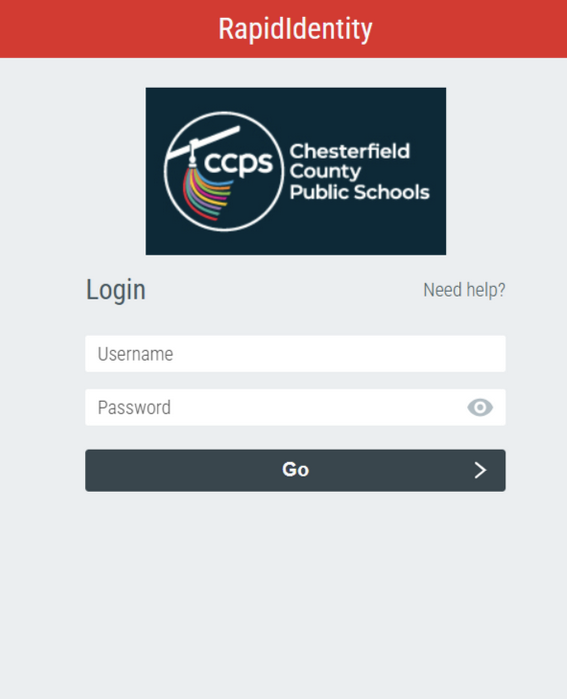
Can’t connect to my.ccpsnet.net?
- Make sure you’re connected to the Internet.
- Type my.ccpsnet.net in the navigation pane – don’t use a short-cut.
- Clear your browser cache
- Open your Chrome browser.
- Tap the three dots in the top-right corner of the screen, hover over “More Tools” and then select “Clear browsing data”.
- Select the time range – “all time” and click all the options for the type of files to be cleared.
- Click “Clear data.”
Forgot your password?
The student’s username is their student ID number. This number can be found in ParentVue and on report cards. Contact your school or teacher for password resets.
The first time that a student logs into a particular Chromebook, they will not see their profile on the home screen. When they click Add A User, they will need to enter the full user account name Student ID@ccpsnet.net – Example: 4912345@ccpsnet.net
To change your password
Note: You must know the student’s password in order to change the password.
- Use a computer to navigate to my.ccpsnet.net. You do not need to be on a Chromebook in order to change the student’s password.
- Log-in using the student ID number for the username and the existing password.
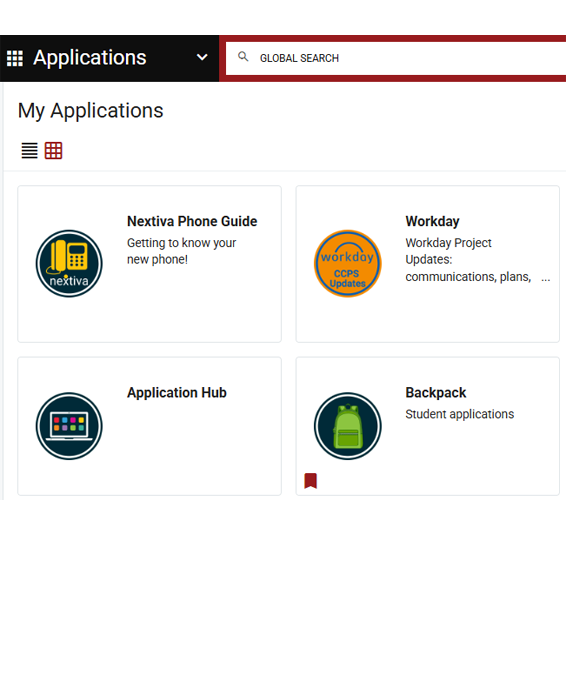
- On the CCPS dashboard, click on Profiles
- Then click on Change Password and follow the directions
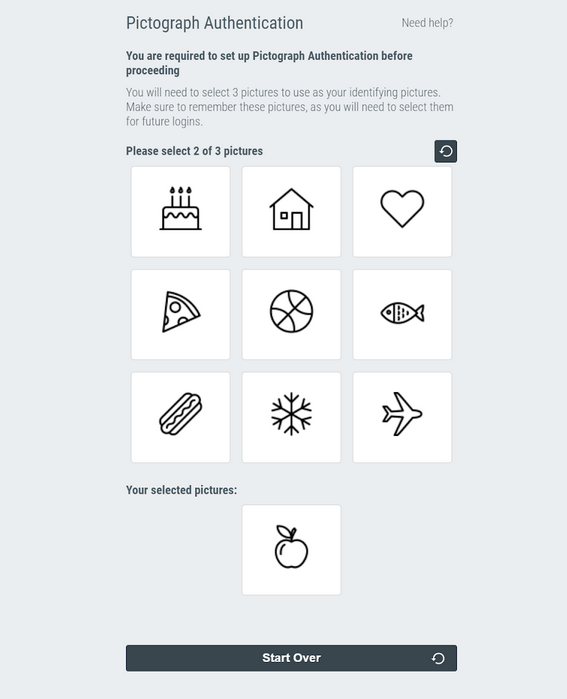
- The student will also have to select new pictographs for logging in when not connected to the school’s network.
Clearing Profiles
If you wish to remove someone else’s account name from your Chromebook:
- On the Chromebook sign-in screen, select the profile you want to remove.
- Next to the profile name, select the down arrow.
- Select Remove this user.
- In the box that appears, select Remove this user